




 LEARN DETAILS
 Downloads
 Video Center
 Report Fault for Repair
 FAQS
FAQS Service Network
 Privacy Policy
 Contact Us
 Monitoring

TSUN App Guide: Inverter WLAN Setup & Firmware Update
Getting your balcony solar system physically installed is only the first step. To monitor your real-time energy production, unlock advanced features, and ensure your system runs at peak efficiency, you need to connect your hardware to the TSUN App. This comprehensive guide will walk you through the preparation, the exact steps to set up your network (tsun wechselrichter wlan einrichten), how to perform firmware upgrades, and how to troubleshoot common connectivity issues.
Preparation: Download the Latest TSUN App
Before touching your inverter, ensure you have the correct and most up-to-date software on your smartphone.
- Download the App: Search for "TSUN Smart" in the Apple App Store or Google Play Store. Ensure you download the official app (version V1.0.18 or higher is recommended for full smart meter compatibility).
- Create an Account: Open the app and register using your email address.
Note: If you are not receiving the verification code, please check your spam or junk mail folder first. If it is still missing, contact our support team with your email address for manual activation. - Enable Phone Permissions: For a successful connection, you must temporarily allow the TSUN App to access your phone's Bluetooth and Location Services.
Step 1: TSUN Wechselrichter WLAN einrichten (WiFi Setup)
Connecting your microinverter to your home network is crucial for monitoring your daily energy yield. Follow these steps carefully:
⚠️ CRITICAL: The 2.4GHz vs. 5GHz Rule
Like most smart home devices, TSUN inverters only support 2.4GHz WiFi networks (this frequency penetrates exterior walls much better than 5GHz). If your router broadcasts a mixed or "Smart Connect" signal where 2.4GHz and 5GHz share the same name, the connection will likely fail. You must access your router settings and split the networks into two distinct names (e.g., "HomeNet_2.4G" and "HomeNet_5G") before proceeding.
- Ensure the inverter is receiving DC power (the sun must be shining on the solar panels).
- Stand within 3 meters of the inverter with your smartphone.
- Open the TSUN App, log in, and tap the "+" icon in the top right corner to add a new device.
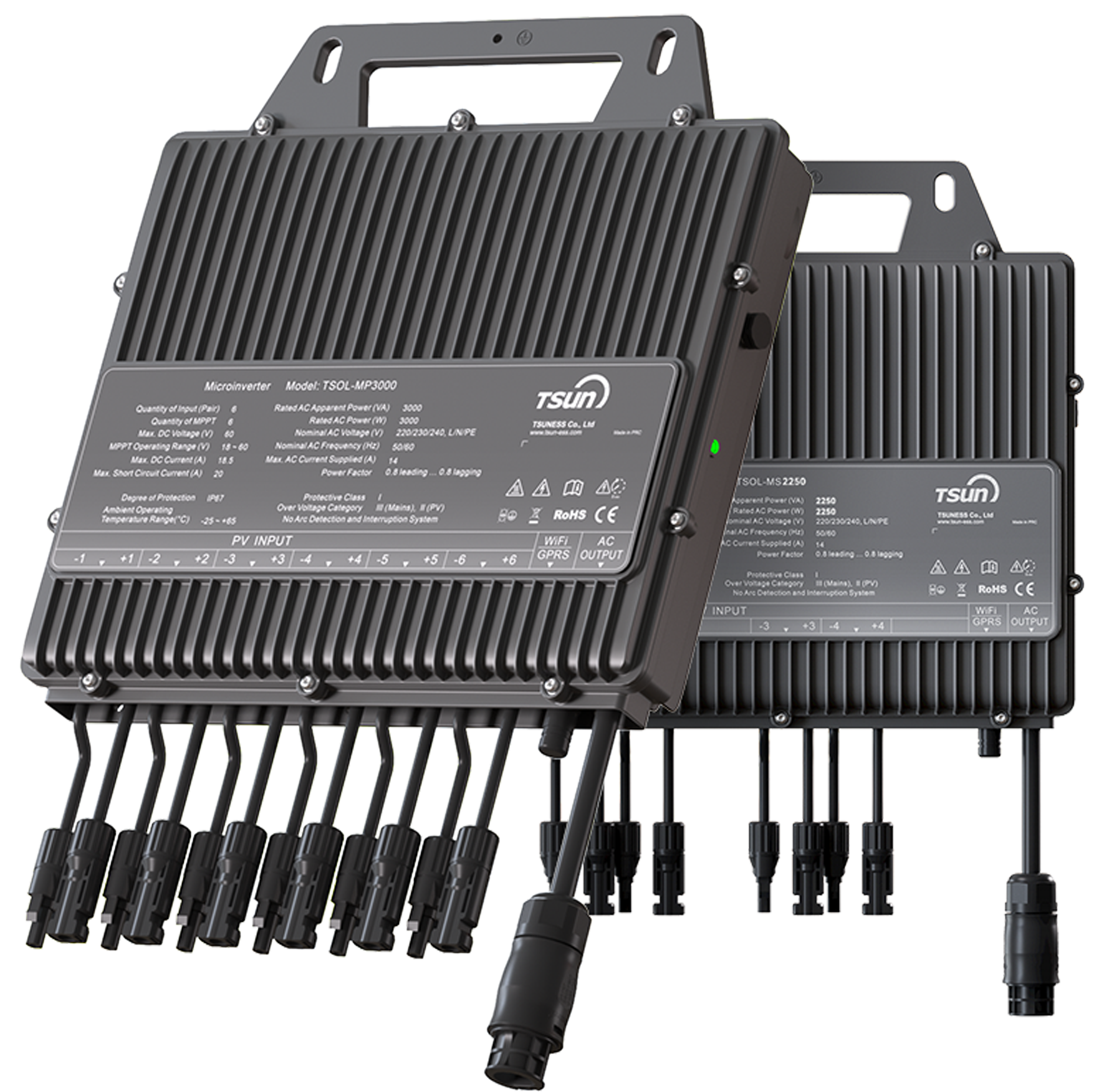
- Scan the SN (Serial Number) barcode located on the inverter's nameplate.
- Follow the on-screen prompts to enter your 2.4GHz WiFi password. The app will pair your phone, the inverter, and your router via Bluetooth before establishing the permanent WiFi link.
Step 2: Performing a TSUN Wechselrichter Update
Just like your smartphone, your microinverter requires occasional software updates. A tsun wechselrichter update can introduce new features (like unlocking output power from 600W to 800W or 2000W), improve grid stability, and patch communication bugs.
How to check and execute an update:
- Ensure your inverter is online (indicated by a solid or flashing green LED, and showing as "Online" in the app). Updates can only be performed during daylight hours when the unit is powered by the sun.
- Navigate to the [Devices] tab in the TSUN App.
- Select your specific inverter and go to the [Settings] or [Device Information] menu.
- Look for the Firmware Update option. If a new version is available, a red dot or notification will appear.
- Click Update. Do not close the app, turn off your router, or disconnect the solar panels while the progress bar is loading. The inverter will automatically reboot once finished.
Troubleshooting: Common Network & App Errors
If you encounter issues during setup or daily use, review this quick troubleshooting guide to resolve the most common faults instantly.
Still Need Assistance?
Our technical team is here to help you get the most out of your solar system. For further reading, check out our complete knowledge base.
View Full FAQ & SupportTo open a support ticket, please email support@tsun-ess.com with your SN code and a description of the issue.

 LEARN MORE